
Special Pages
Special Pages are added to the menu via the Add Special button when you Configure Menu Entries on your event website.
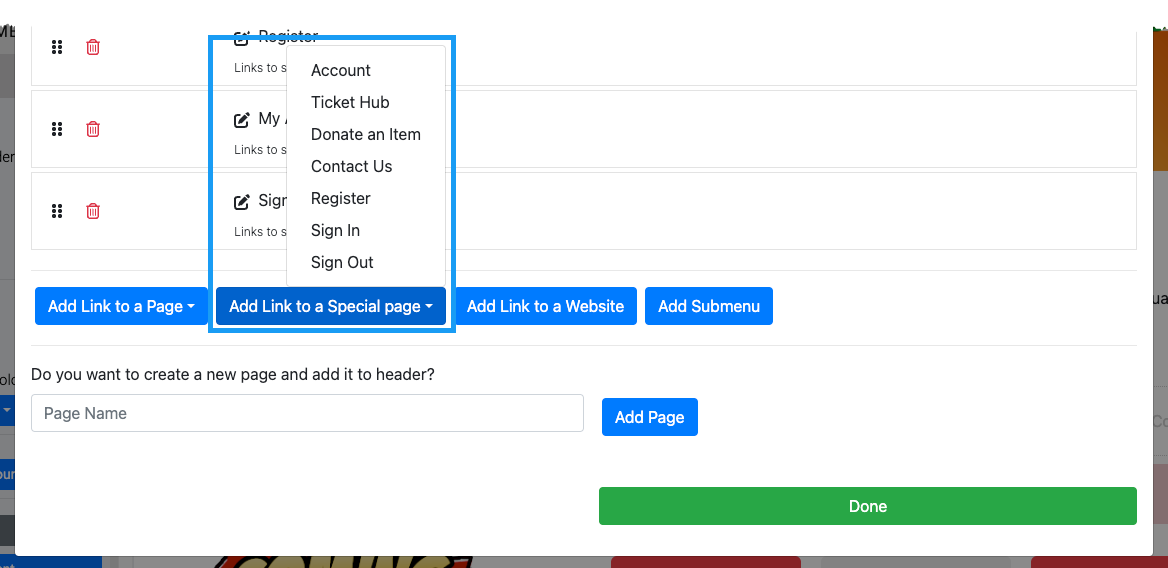
Special Page Visibility
Some Special Pages may not appear in all menu views. Each may have its own conditional logic that must be met before it will be displayed.
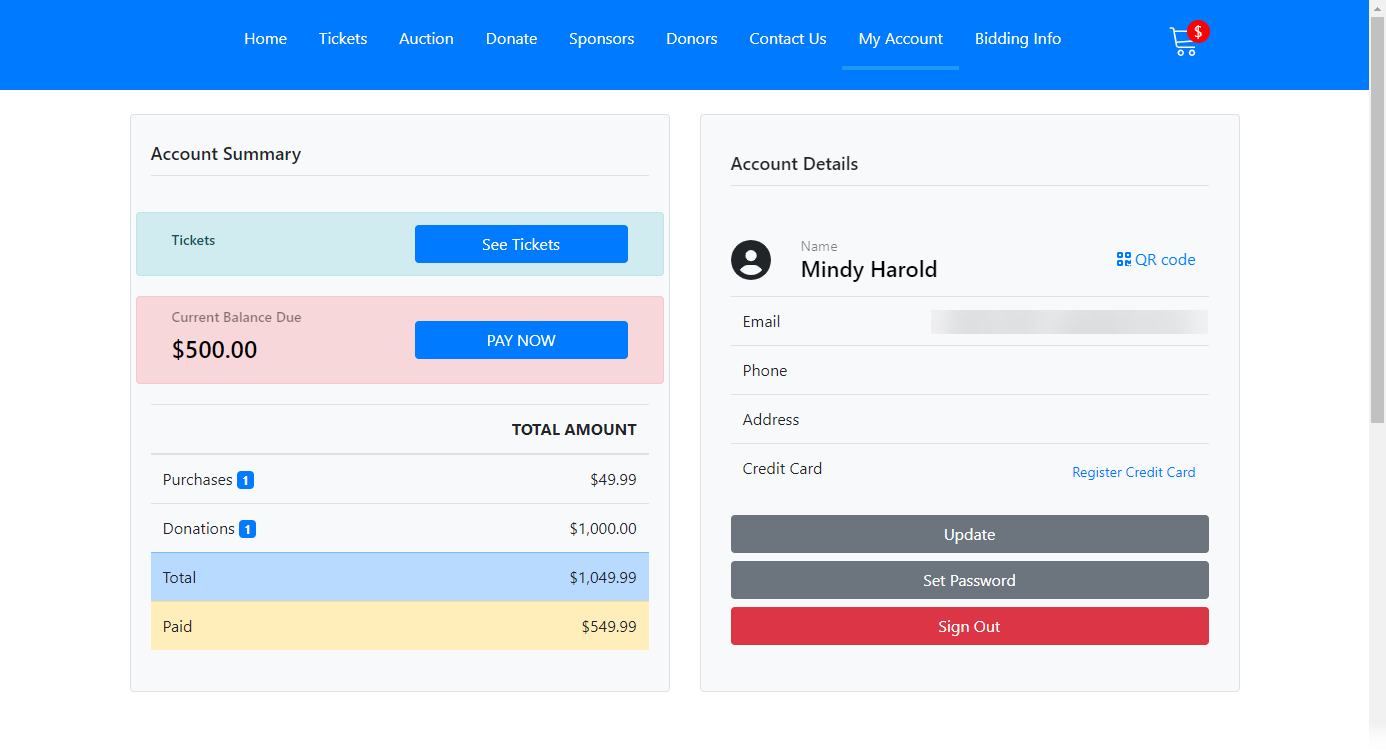
Account
The Account page menu entry is only viewable to a logged-in registered participant of the specific event website. It will not appear to Organization User Accounts unless their email matches a registered participant for the event.
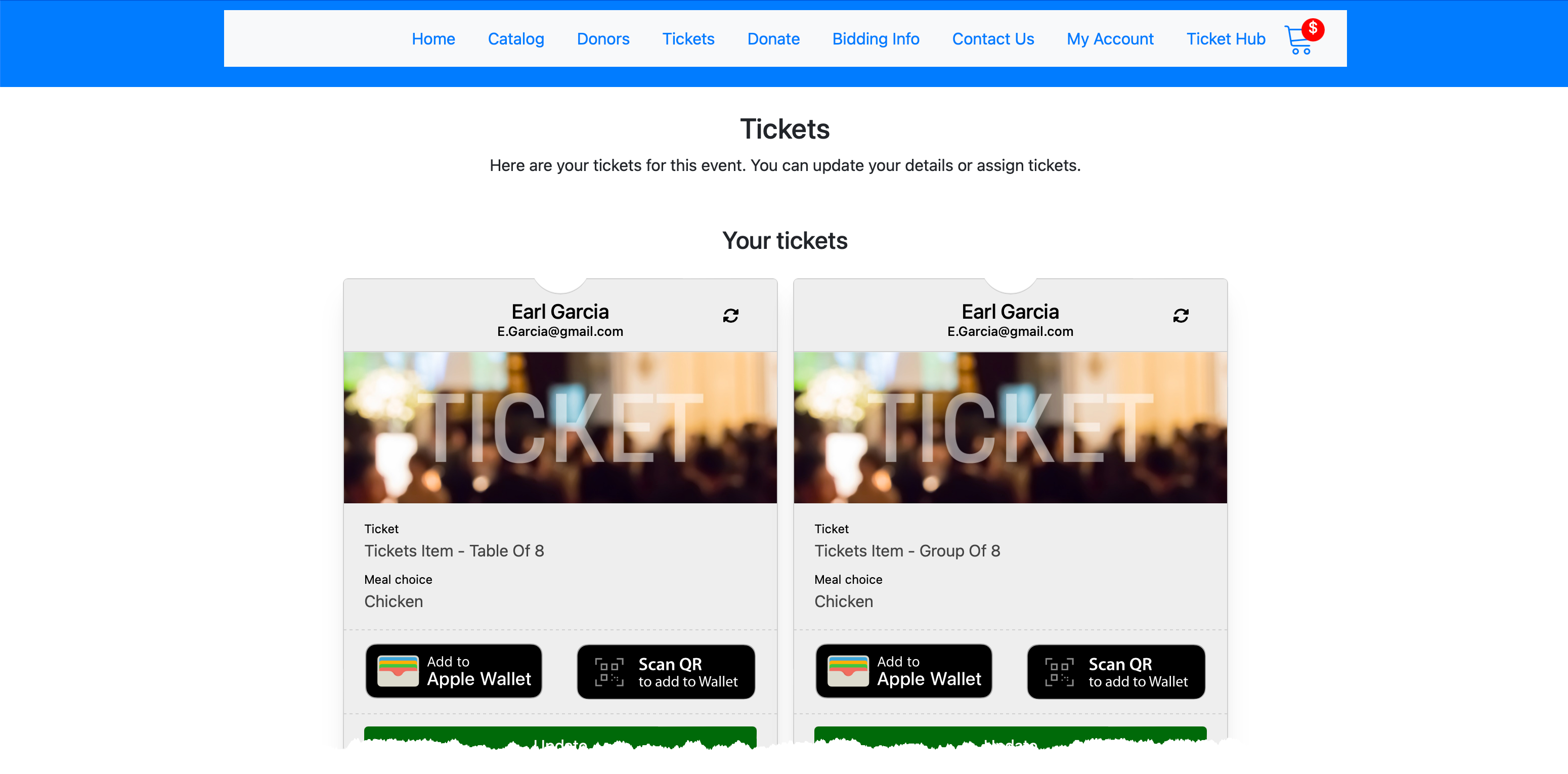
Ticket Hub
The Ticket Hub page displays any tickets that logged-in guests have purchased or been assigned.
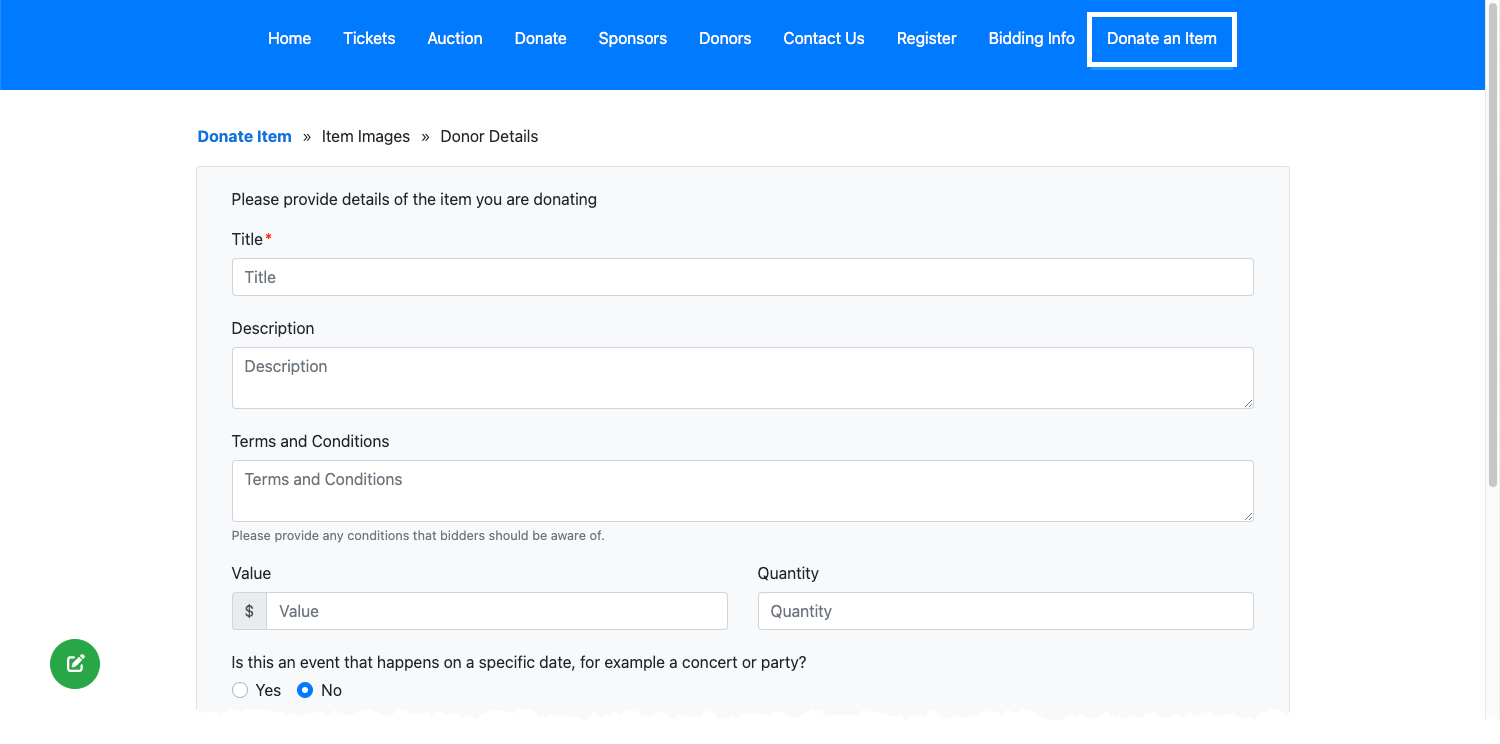
Donate An Item
The Donate An Item page inserts the Solicit Item form, allowing donors to offer items for your event.
Contact Us
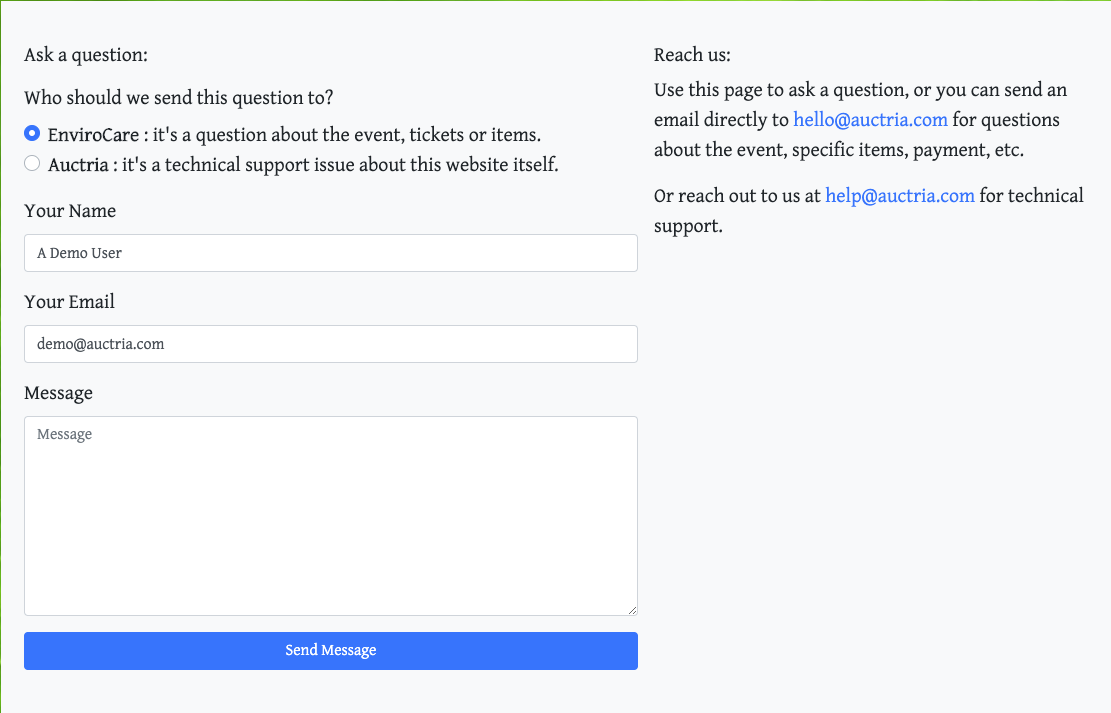
The Contact Us page menu entry is viewable under all conditions — to registered bidders, visitors, and organization users alike.
Register
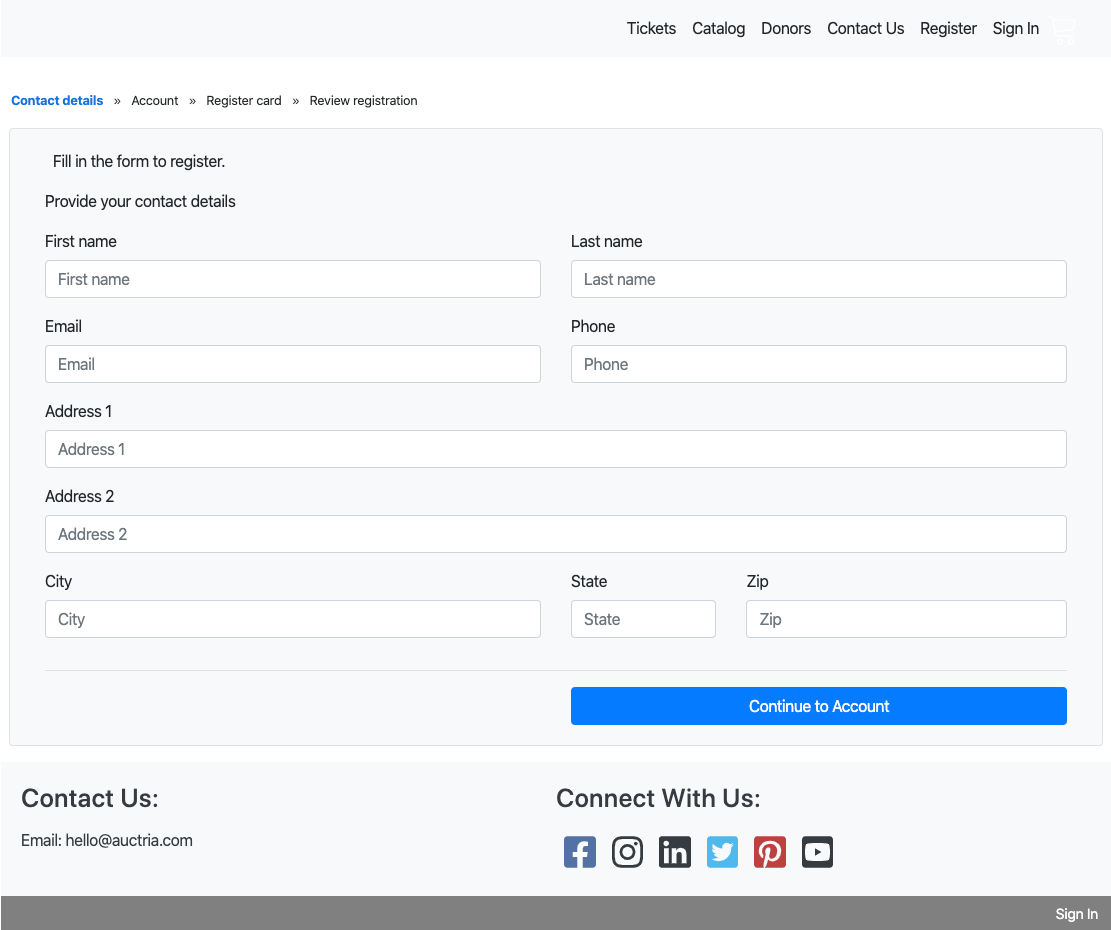
The Register page menu entry will only appear when specific conditions are set in the Registration/Checkout Online Registration section.
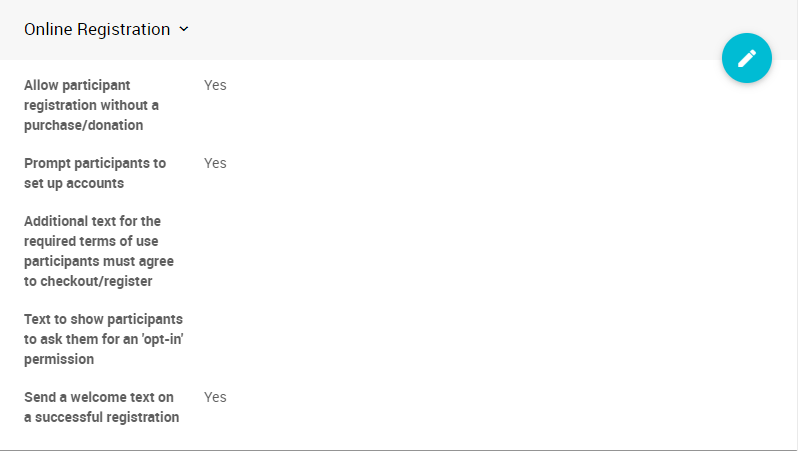
By default, the following options allow for Online Registration without requiring the purchase of a Ticket item:
- Allow participant registration without a purchase/donation is set to Yes
- Prompt participants to set up accounts is set to Yes
- Send a welcome text on a successful registration is set to Yes
Clicking Register (the default menu entry label) opens the Online Registration page.
Sign In
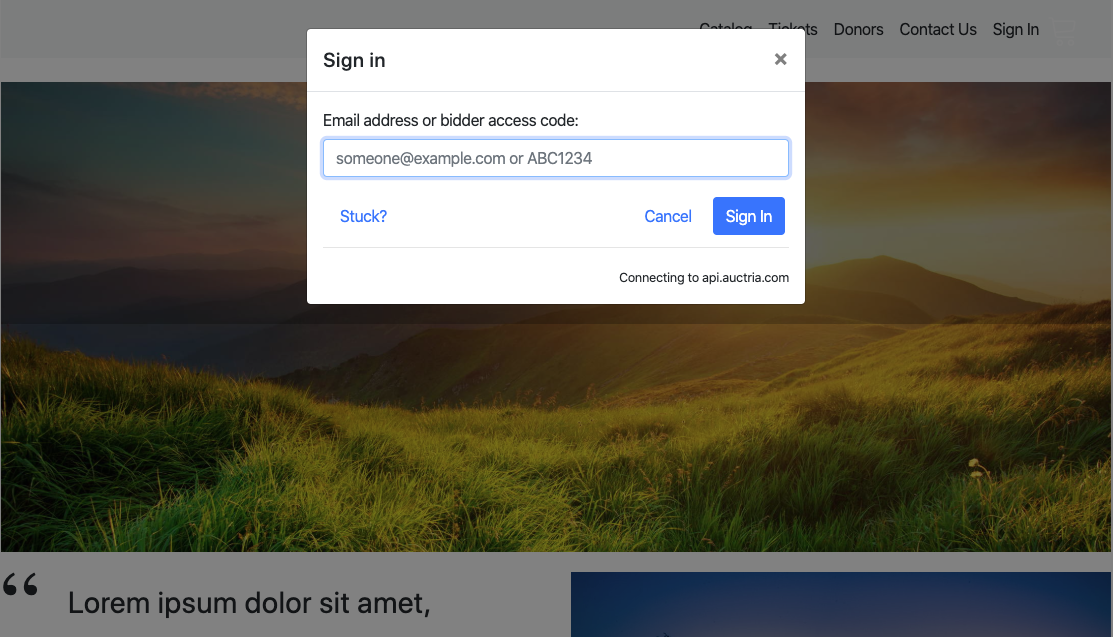
The Sign In menu entry is only visible to visitors who are not currently logged in. Clicking the link opens the Sign In window. See Opening The Editor for more details.
Sign Out
Clicking the Sign Out menu entry will immediately sign you out of both the event website and the auction dashboard.
Read More:
Also see Header Links for more information.
Scan QR Code
The Scan QR Code special page is available on mobile and tablet views of the event website. It opens the device camera so attendees can scan a QR code without leaving their current browser tab — keeping their session active.
Scan QR Code Page Visibility
The Scan QR Code menu entry is only shown on mobile and tablet devices. It will not appear in the header on desktop browsers.
What it does
The scanner supports two use cases:
- Ticket QR codes -- scan the QR code on a ticket to log an attendee in to the event website.
- Item display pages -- scan the QR code on a printed item display to navigate directly to that item's page on the event website.
Note
Previously, attendees who scanned a QR code using their phone's native camera (e.g. Safari in private mode) would be taken to a new tab, sometimes with no knowledge of their active session. Using the in-menu scanner keeps everything in the same tab, so their login state is preserved.
Last reviewed: April 2026