
How To Copy Items
A walkthrough of the steps needed to copy items from one event to another.
The Copy Items function lets you copy items from one event to another. This is especially useful for items that are common across events — for example, Donation type items are often the same or very similar from one event to the next.
Step 1 — Select the Event to Copy From
Open the event you want to copy items from using the drop-down at the top left of your Auctria dashboard.
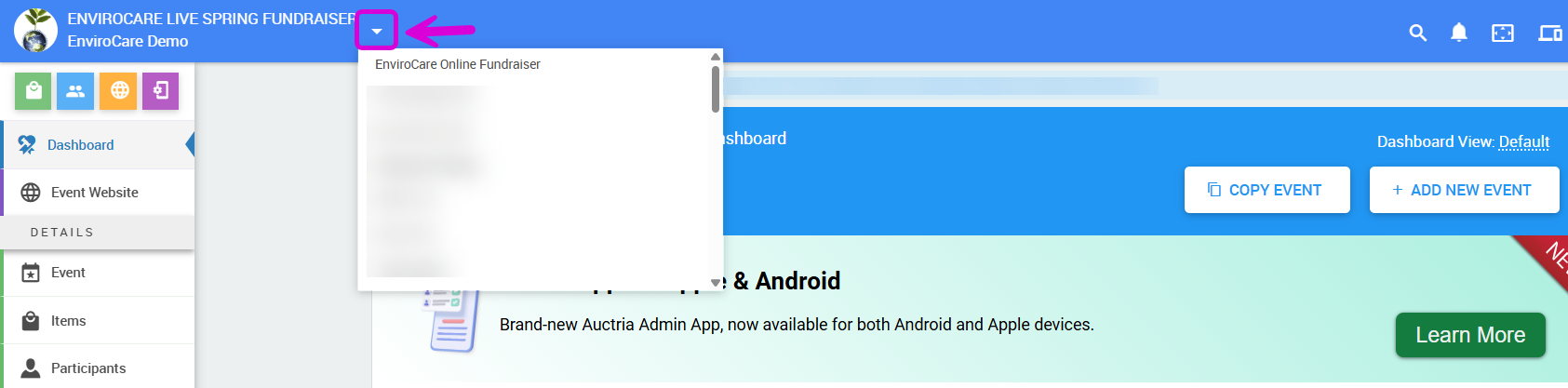
See Change Events for more information on switching between events.
Step 2 — Open the Copy Items Dashboard
From the main dashboard, click Items in the left sidebar, then click Copy Items.
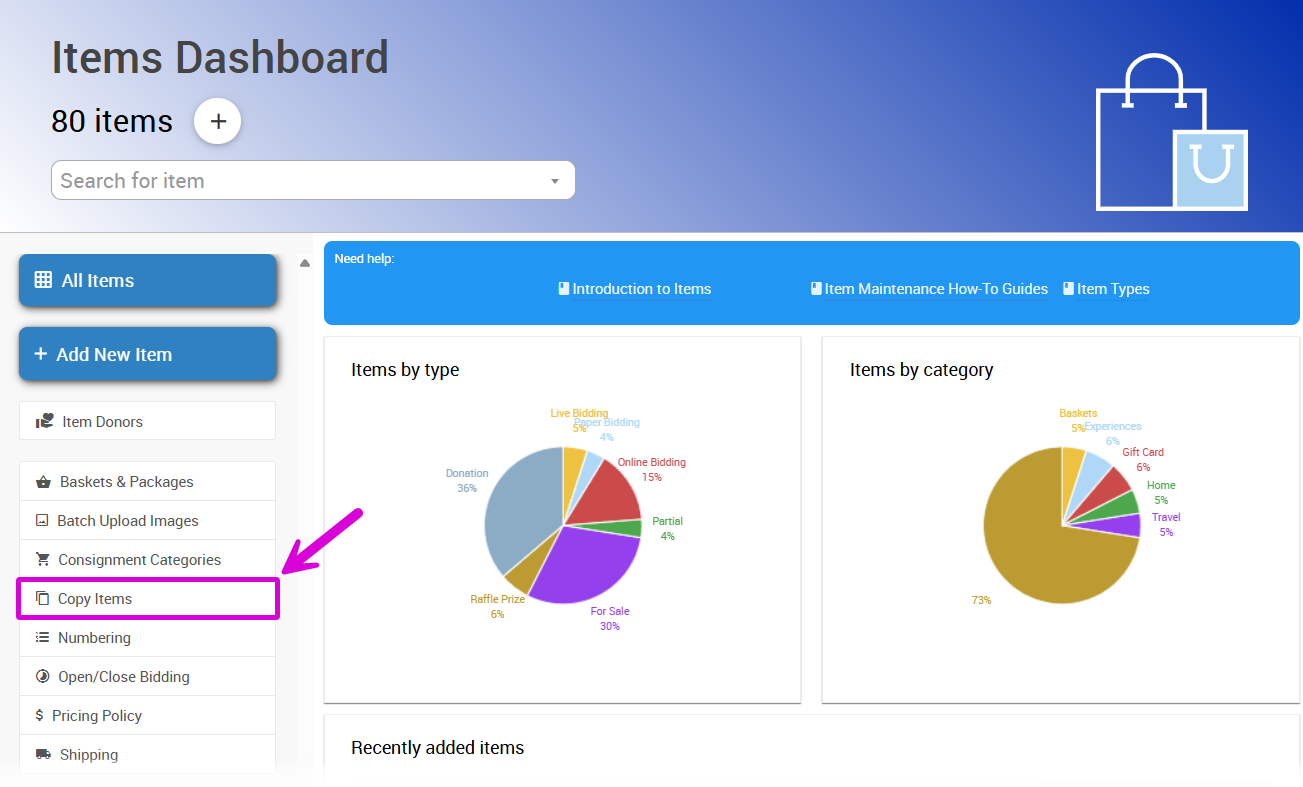
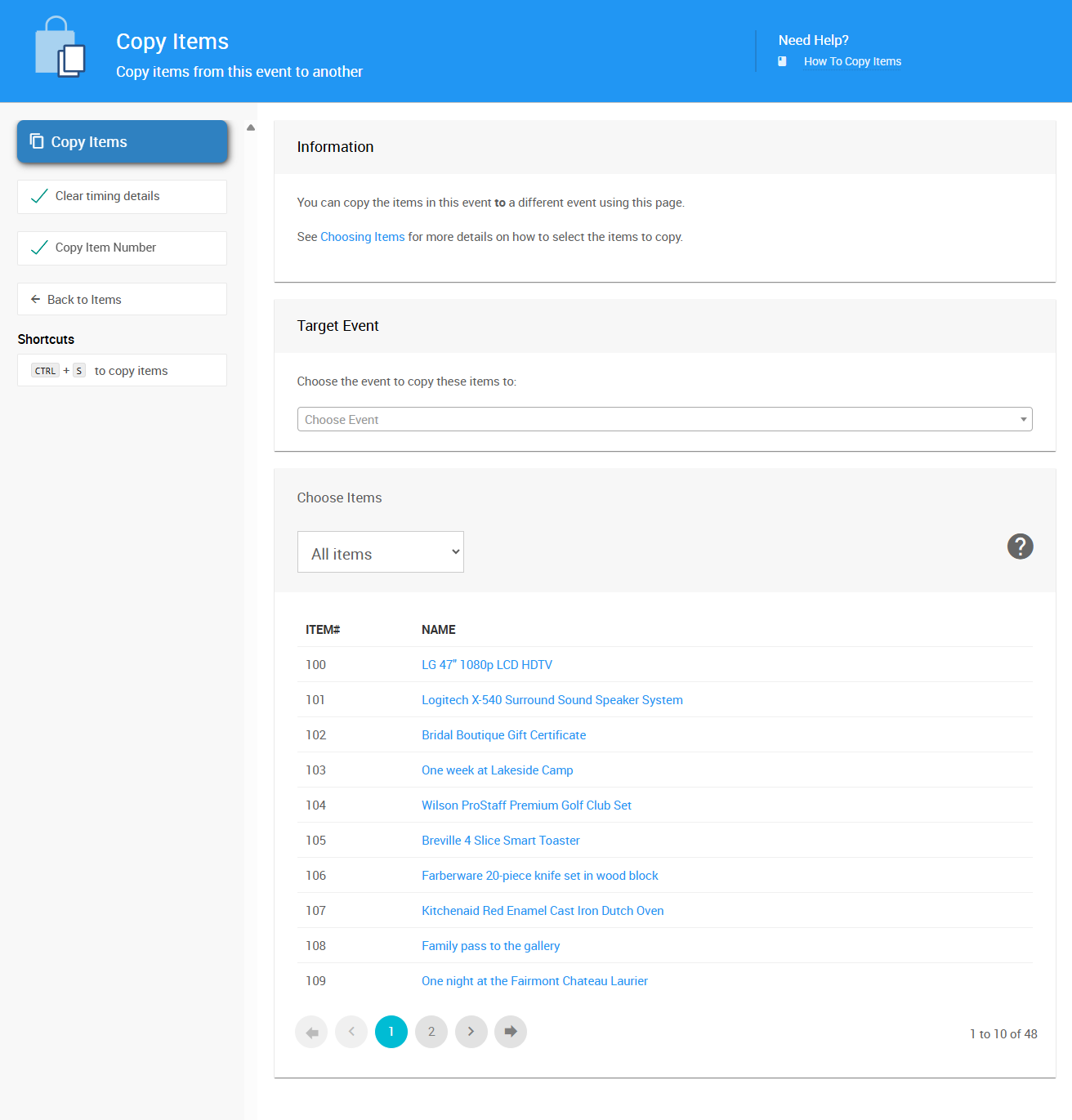
This will open the Copy Items dashboard.
Step 3 — Select the Target Event
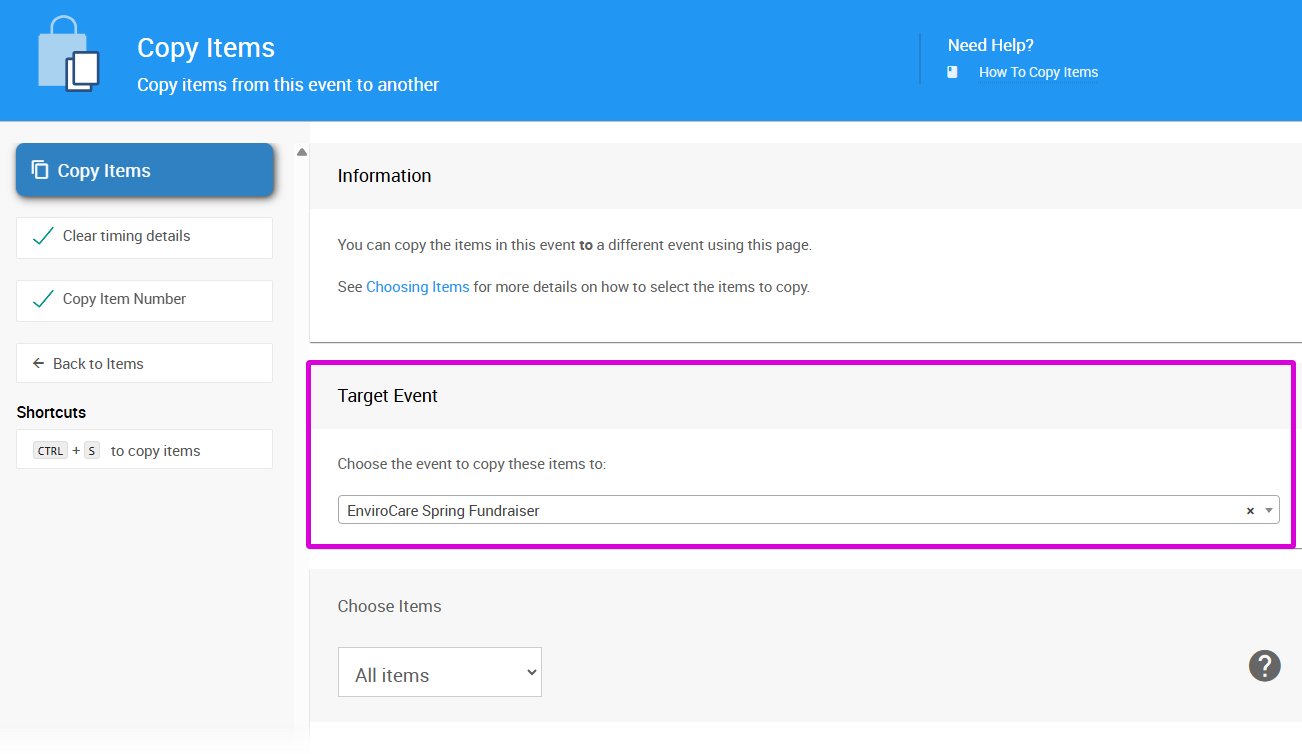
Use the Target Event drop-down to select the event you want to copy items to. The selector lists all of your existing events.
Step 4 — Choose the Items to Copy
Use the Choose Items section to select which items to copy. By default, all items in the current event are selected.
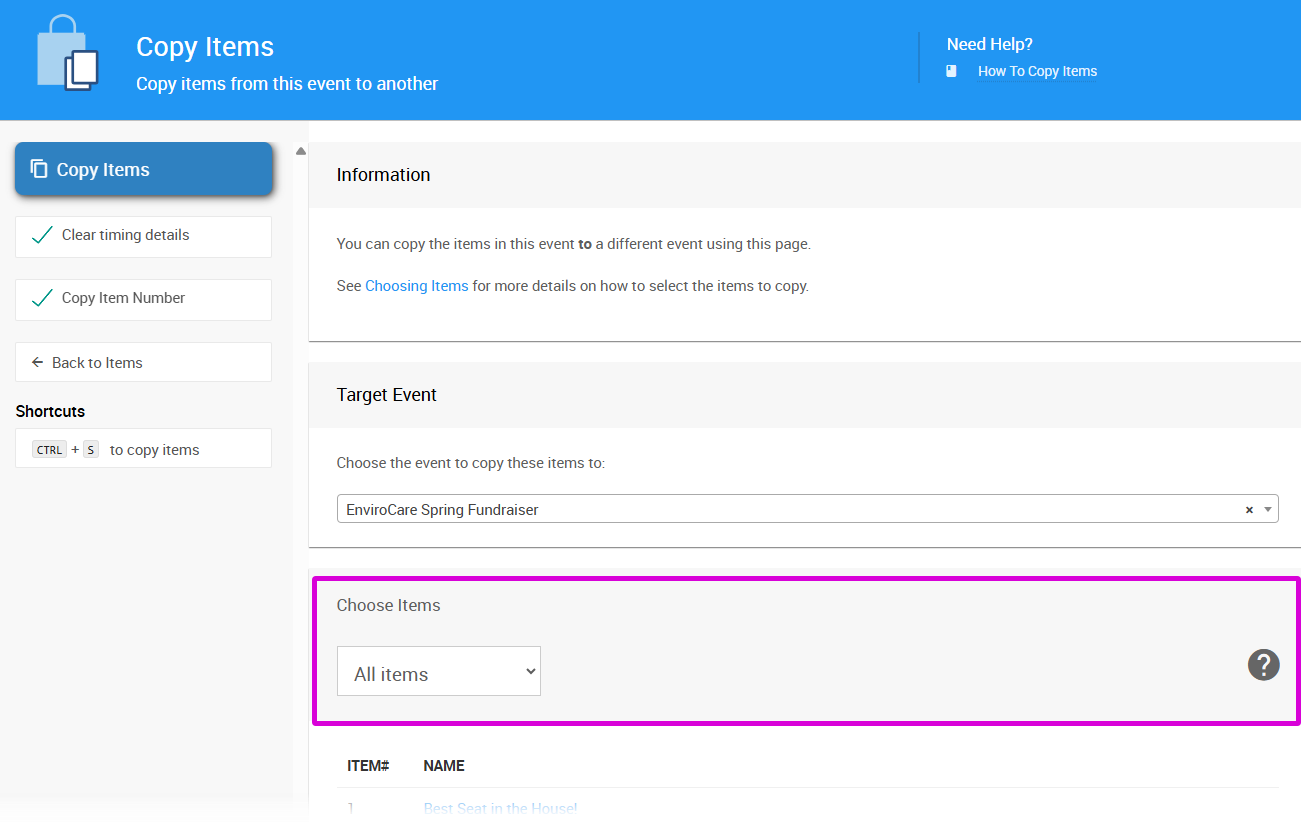
To copy only a subset of items, click the options menu (three vertical dots at the far right of the Choose Items section) to access filter options. See Choose Items Filters for more details.
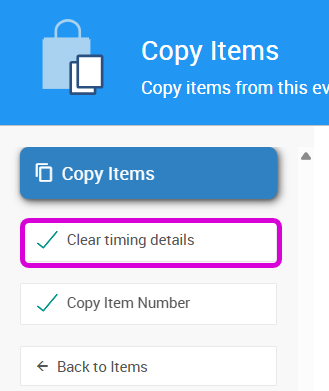
Clear Timing Details
In most cases you'll want to leave the Clear timing details option enabled. This removes any item-specific time overrides from the copied items, ensuring they'll be visible to guests in the new event without carrying over stale timing settings from the previous one.
Step 5 — Copy the Items
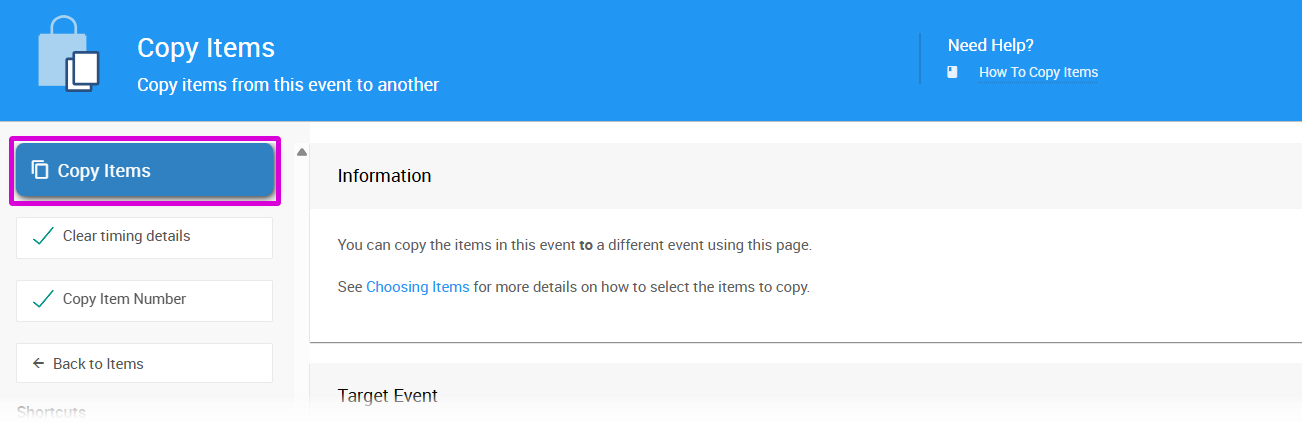
Once you've chosen the items to copy, click Copy Items in the Actions sidebar.
Step 6 — Confirm the Copy
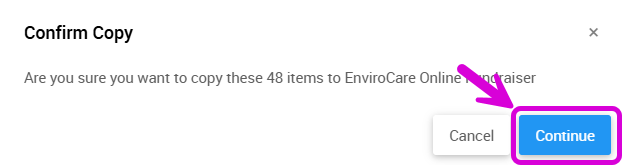
A Confirm Copy window will appear. Click Continue to complete the process.
The selected items will now be available in the target event.
Last reviewed: March 2026