
After Event Sales
Learn how to manage and sell items that remain after your event has ended.
After an event closes, you may have items remaining — for example, items that didn't meet their reserve price, or multiples of an item where not all quantities were won.
Items With Multiple Quantities
For items with a quantity greater than 1 that still have unsold stock, duplicate the item rather than re-opening the original so the original auction results are preserved. See Open Multiple Quantity Items for more details.
Approach 1 — Buy It Now Only
The simplest way to sell remaining biddable items after an event is to convert them to Buy It Now Only items at a fixed price.
To do this, open the item's Bidding Rules section and:
- Set Starting Bid and Buy It Now Price to the same value.
- Clear the Bid Increment value.
- Clear the Reserve Price if one was set.
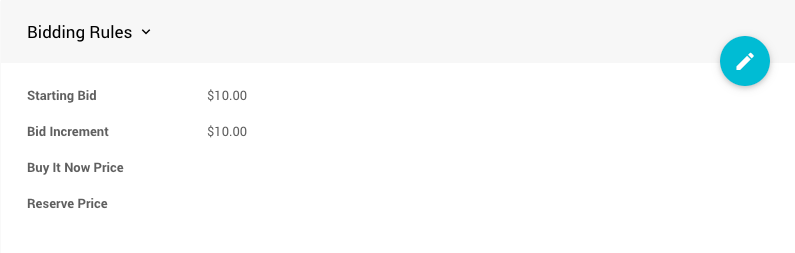
The item will now behave as a fixed-price Buy It Now Only item.
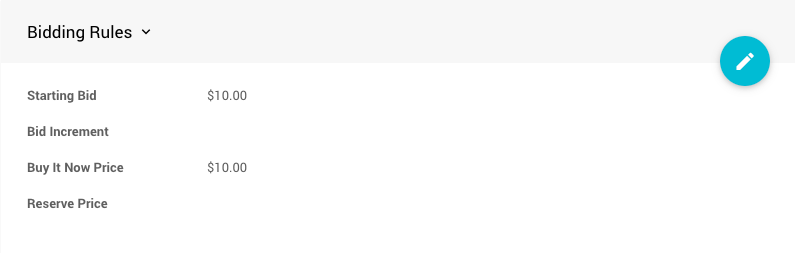
See Buy It Now Only Items for more details on this configuration.
Approach 2 — For Sale Items
An alternative — especially useful when selling multiples — is to change the item type to For Sale. This works for single items too.
For Sale items use the Pricing section Value field rather than bidding rules.
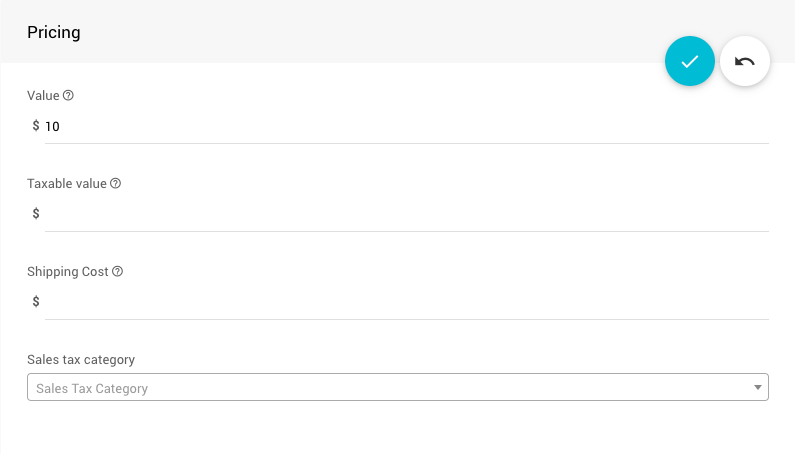
Also review the following sections on the item:
| Section | What to Set |
|---|---|
| Availability | Set the Quantity available and configure Online Purchase Behavior — the default is Immediate Payment Only. |
| Online Availability | Set a new Override online bidding ends at time so the item is available for the appropriate period. |
Troubleshooting: Items Not Displaying
Online Availability
If your items aren't appearing on the event website, check their Online Availability override times. Items may not be visible if the default event times have already passed.
See Introduction To Online Availability for more information.
Item Catalog Conditions
For Sale items may not appear in your Item Catalog if the catalog's conditions are set to display only biddable items. The most common default condition is Item Types, which typically shows only biddable items.
To show For Sale items, enable the For Sale checkbox in the Item Types condition (and clear the others if needed).
See Configure Items Displayed for more details.
Allow Immediate Purchases
When using For Sale items for after-event sales, enable Allow immediate purchases in the Item Catalog's Item Card settings. This gives buyers a direct purchase button without additional steps.
See Configure Item Catalog Style for more details.
Last reviewed: April 2026